---
title: Set language and time zone
categoryId: settings
subCategoryId: User settings
---
This page explains language and time zone settings for your Repsona account.
| Who can use it | Available on |
|---|---|
| All | All |
## Set language and time zone
1. Open the settings menu from the icon in the upper-right corner of the screen.
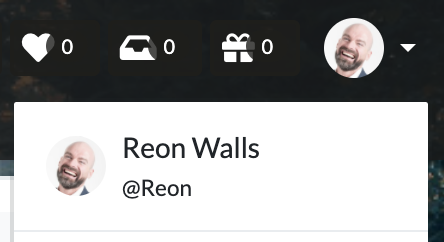 2. Click "User settings".
3. Open the "Time zone & language" tab.
### Time zone
Select your time zone from the "Time zone" dropdown and click "Save". This affects how notification times and schedules are displayed.
### Language
Select a language from the "Language" dropdown and click "Save". This sets the language used across Repsona.
### Date format
Select a date format from the "Date format" dropdown and click "Save changes". You can choose month/day or day/month.
### First day of the week
Select a day from the "First day of the week" dropdown and click "Save changes". This sets the calendar’s starting day.
2. Click "User settings".
3. Open the "Time zone & language" tab.
### Time zone
Select your time zone from the "Time zone" dropdown and click "Save". This affects how notification times and schedules are displayed.
### Language
Select a language from the "Language" dropdown and click "Save". This sets the language used across Repsona.
### Date format
Select a date format from the "Date format" dropdown and click "Save changes". You can choose month/day or day/month.
### First day of the week
Select a day from the "First day of the week" dropdown and click "Save changes". This sets the calendar’s starting day.